

The Makerspace is a self-serve creative space where you can bring your 3D printing, crafting, gaming, or other interests to life using a wide range of tools and technology.
On this Page
Makerfest

Makerfest
Ready to Get Started?


1. Get a Library Card and View Our Guidelines
Register for a library card and view our Makerspace guidelines.
Sign our waiver.
2. Explore Our Equipment
Check out the tools and technology available.
View the Equipment List.
3. Reserve Your Time
Book your time in the Makerspace.
Be sure to bring your files.
Questions?
If you need help, we’re here to support your journey.
Call 905-546-3200 or email askus@hpl.ca.
Equipment
Makerspace Locations
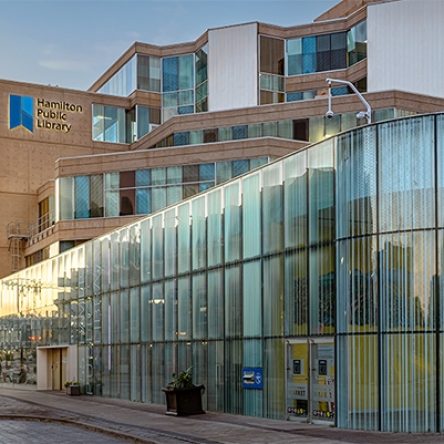
Central Library
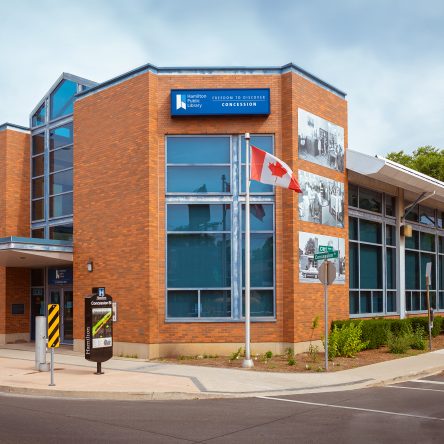
Concession Branch
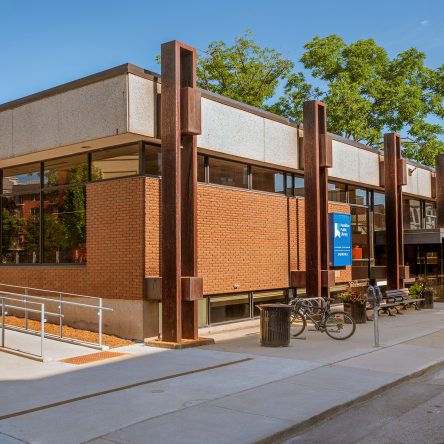
Dundas Branch
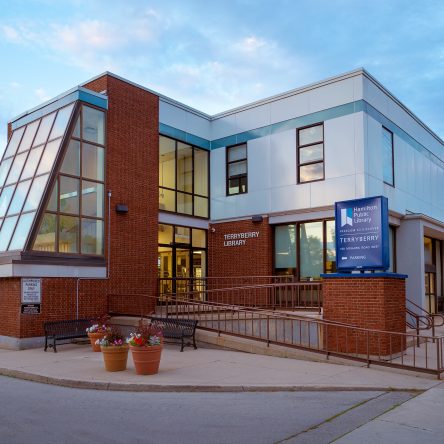
Terryberry Branch
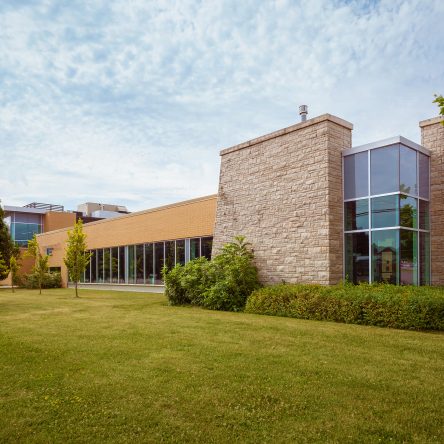
Turner Park Branch
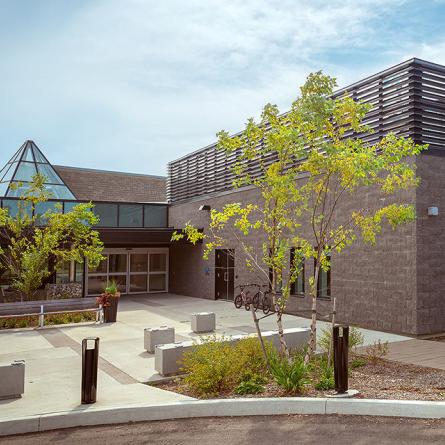
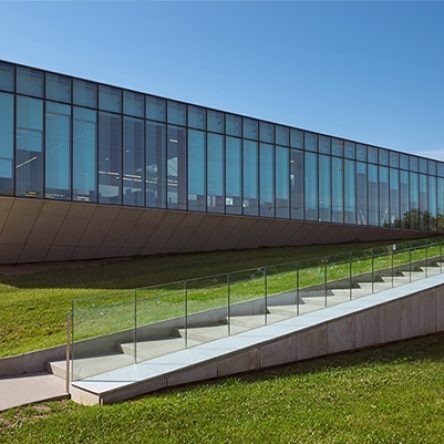

Makerspaces
-
Remove the SD card from the camera and insert it into the computer's SD card reader. Open your computer's file explorer (Windows File Explorer or Mac Finder). Plug your personal USB flash drive into another available USB port on the computer. Copy and Paste: Select the photos/videos you want to keep, right-click and select Copy, then navigate to your USB drive folder, right-click, and select Paste. Or simply drag the highlighted files.
-
In some automatic modes, the flash only pops up if the camera detects low light. In the Creative Zone (P, Tv, Av, M), you must manually press the flash button (lightning bolt icon) near the shutter.
-
Common causes include the lens not being properly attached, the autofocus (AF) system failing to lock onto a subject, or a full/unrecognized memory card.
-
Align the white square (for EF-S lenses) or the red dot (for EF lenses) on the lens with the corresponding mark on the camera body, then rotate until it clicks.
-
Both cameras use SD, SDHC, and SDXC cards.