Digitization Software and Creative Suite
Software and Equipment:
- Adobe Creative Cloud
- Vidbox VHS Conversion
- Cassette to mp3 Conversion
- iMovie
- VueScan Flatbed Negative/Photo scanning

Adobe Creative Cloud
Use the Adobe Creative Cloud on our iMac computers to bring your graphic design and video and photo editing to life. Software includes Photoshop, Premiere Pro, Illustrator, and Lightroom.
Pricing: There is no cost associated with this service.
Adobe Creative Cloud FAQ
-
No, Adobe software is available exclusively on our iMac computers.
Getting Started
- Check out a LinkedIn Learning class, on an Adobe Creative Cloud Application, like Premiere Pro or Photoshop, if needed.
- Reserve a booking online or in person to use the Adobe Creative Cloud independently at a participating branch.
Tutorials
Vidbox VHS Conversion
Convert VHS movies to a digital format to preserve and protect your home movies. Save to a storage device such as a USB stick when finished.
Pricing: There is no cost associated with this service, but you can purchase a USB stick if needed.
USB: $6.00
Vidbox VHS Conversion FAQ
-
We can try to work with other formats. If your device has RCA outputs somewhere (e.g., white, red, and yellow), we may be able to hook it up to our equipment. You’ll need to bring the device with you; we don’t have other machines besides a VHS VCR.
-
Bring a portable USB stick or hard drive to save your files. Also bring whatever media you want to convert (e.g. VHS tape, photo negatives).
-
VHS conversion will take as long as your tape runs (e.g. a two-hour tape will take two hours to convert). Saving the content to a USB will be quicker than burning it to a DVD.
Getting Started
- Bring the item you would like to digitize to the Library along with a storage device, such as a USB drive.
- Reserve a timeslot to use the VHS converter and computer.
Tutorials
Cassette to Mp3 Conversion
Convert cassettes into a digital mp3 format.
Pricing: There is no cost associated with this service.
USB: $6.00
Vidbox VHS Conversion FAQ
-
We can try to work with other formats. If your device has RCA outputs somewhere (e.g., white, red, and yellow), we may be able to hook it up to our equipment. You’ll need to bring the device with you; we don’t have other machines besides a VHS VCR.
-
Bring a portable USB stick or hard drive to save your files. Also bring whatever media you want to convert (e.g. VHS tape, photo negatives).
-
VHS conversion will take as long as your tape runs (e.g. a two-hour tape will take two hours to convert). Saving the content to a USB will be quicker than burning it to a DVD.
Getting Started
- Bring the item you would like to digitize to the Library along with a storage device, such as a USB drive.
- Reserve a timeslot to use the VHS converter and computer.
- Attend your booking.
Tutorials
iMovie
Beginner-friendly video editing software developed by Apple. It is designed to turn clips into polished videos with numerous editing options, including special effects, colour correction, cinematic filters, and much more.
Pricing: There is no cost associated with this service.
iMovie FAQ
-
Use the Split Clip function by positioning the playhead (the vertical line) and pressing Command + B.
-
Check your Privacy and Security settings in System Settings. You must manually grant iMovie permission to access your Photos, Microphone, or Camera.
-
Click the Share button in the top right corner and select File. Choose your settings (Resolution, Quality, etc.) and click Next. A save window will appear. On the left, select your External Drive as the destination, then click Save.
Getting Started
- Check out a LinkedIn Learning class. Alternatively, attend a Video Editing with iMovie program or book a one-on-one appointment with the digital technology assistant to learn how to use the application.
- Reserve a booking online or in person to use the iMovie application independently at a participating branch.
- Bring the raw footage or audio files you wish to work on (MP3/MP4) on an external storage device.
Tutorials
VueScan Flatbed Negative/Photo Scanner
Flatbed Scanning FAQ
-
The Library's iMacs have photo editing programs, such as Adobe Photoshop. Our scanning software also has basic photo correction tools. Staff can also point Members to tutorials to learn how to use these tools.
-
The Library’s scanner has mounts for 35mm film, medium-format film, and mounted slides. If you have a different format, you will still be able to scan, but results may vary.
-
Bring a portable USB stick or hard drive to save your files. You’ll also need to bring whatever medium you wish to convert (e.g., photo files).
Getting Started
- Reserve a booking online or in person to use the scanning equipment independently at a participating branch.
- Staff will provide equipment and instructions on how to get started.
- Once scanning is complete, save your files to a USB drive or any portable storage medium.
Tutorials
Available at these Branches
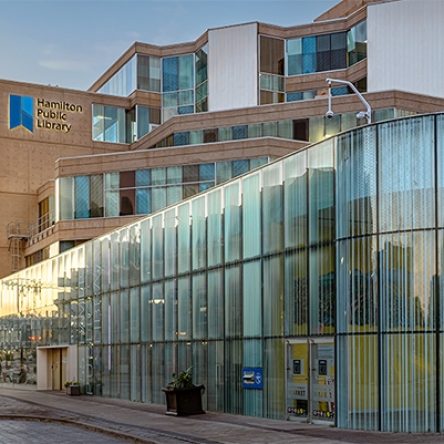
Central Library
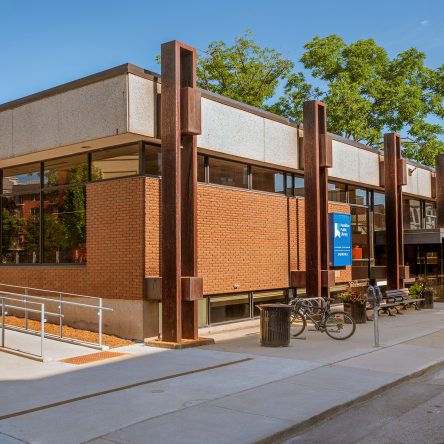
Dundas Branch
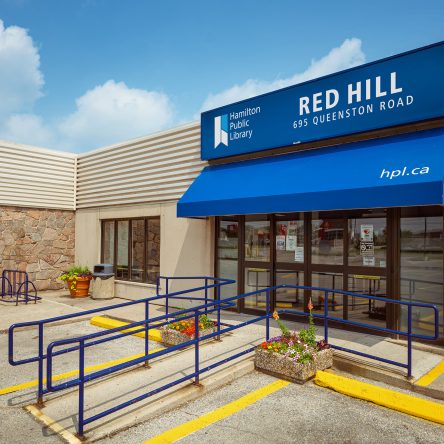
Red Hill Branch
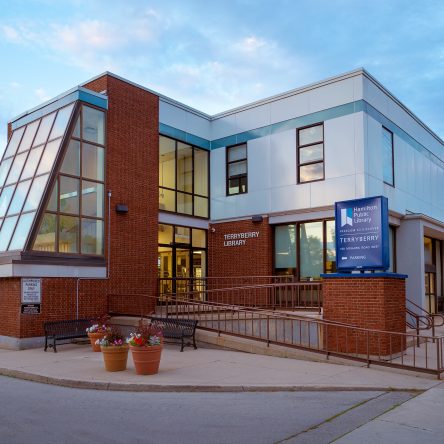
Terryberry Branch
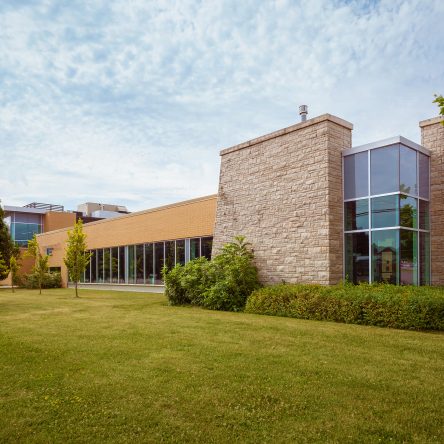
Turner Park Branch